

1.What is an MX Record?
1.1 Meaning of MX Record in DNS
The MX record stands for Mail Exchange record, is a specialized type of DNS (Domain Name System) resource record that is the central instruction for email delivery. It specifies the mail server or servers responsible for accepting and handling incoming email messages on behalf of a given domain name. Functioning as a “postal sorting system” or “traffic director” for a domain’s email, the MX record tells a sending server exactly where to deliver an incoming message or email.
The process of email delivery begins when a sender composes a message to an address like name@your-company.com. The sender’s computer, more specifically its Message Transfer Agent (MTA), performs a DNS lookup for the domain your-company.com to retrieve its MX records. The MX record returns the hostname of the designated mail server, and the MTA then uses this information to establish a Simple Mail Transfer Protocol (SMTP) connection with that specific server to deliver the email. This two-step process, involving both the DNS lookup and the subsequent SMTP connection, is the core mechanism that ensures an email reaches its intended destination.
1.2 Why MX Records are Important for Email Delivery
- Without MX records, mail servers cannot deliver emails.
- Wrong MX settings can send your emails to the wrong server or you may get a bounce email.
- In Google Workspace, MX records ensure all emails go directly to Gmail servers.
2. The Anatomy of an MX Record: Components and Function
2.1 Components(Priority, Hostname, TTL)
A complete MX record is several critical components work together to form a complete MX record and ensure proper email routing and delivery.
2.1.a. Priority:
Priority is a number that sets the order for contacting mail servers when delivering emails. The usual rule is that a smaller number means higher importance. So, the sending server always tries the one with the lowest number first. If that server isn’t working, it moves to the next one on the list. The setup backs up the system and ensures email delivery if a server fails. Remember, while “lower number = higher priority” is the common way, always check your email service provider’s guide for their exact rules. Some might use different systems or special numbers. If you get it wrong, you could accidentally make a backup server the main one, leading to emails going to the wrong place.
2.1.b. Hostname/Value:
This is the full web address (called a fully qualified domain name or FQDN) of the email server that handles incoming mail for the domain. it might look like “SMTP.GOOGLE.COM,” This hostname, such as SMTP.GOOGLE.COM, is the address that the sending MTA will connect to after performing the initial DNS lookup.
2.1.c. TTL (Time-to-Live):
The TTL value, is a setting in DNS records, like those for email servers (MX records). It’s measured in seconds and tells other DNS systems how long they can keep a copy of the record in their memory (cache) before they need to check for updates from the main server. If you set a low TTL, updates to the record spread quickly across the internet, but it means more frequent checks, which can put extra work(extra load) on the DNS servers.
On the other hand, a high TTL means fewer checks and less strain on servers, but any changes you make might take a long time to show up everywhere—sometimes up to 48 hours or even longer. a smart approach is to use a low TTL when you’re making changes or switching things over(like Migration), so updates happen fast. Once you settle everything and confirm it’s working, switch to a higher TTL for better efficiency.
2.2 How Google workspace MX Records Work with Other DNS Records (A, CNAME, PTR)
MX (Mail Exchange) records do not work on their own; they depend on other DNS records to function properly. An MX record cannot point directly to an IP address. Instead, it must point to a hostname such as SMTP.GOOGLE.COM
Another important rule is that MX records must not point to CNAME records (aliases). Doing this goes against DNS standards and will break email delivery.
In addition, email servers often perform a reverse DNS check. This involves using a PTR record to confirm that the sender’s IP address maps back to a valid domain name. If this reverse lookup fails, even genuine emails may be marked as spam or rejected.
In short, successful email delivery depends on more than just the MX record. MX, A/AAAA, and PTR records work together to ensure smooth and secure email delivery.
In Short
MX (Mail Exchange) records are not standalone. They work together with other DNS records to make sure emails are delivered correctly.
MX Records Need Hostnames, Not IPs
- An MX record cannot point directly to an IP address.
- Instead, it points to a hostname (like
mail.example.com). - That hostname must then have an A record (for IPv4) or an AAAA record (for IPv6) to connect it to the actual mail server’s IP.
- If the A/AAAA record is missing or wrong, even a correct MX record will not work, and email delivery will fail.
Why You Can’t Use CNAME with MX
- An MX record must never point to a CNAME record (an alias).
- This is against DNS rules and will break email delivery.
Reverse DNS Checks (PTR Records)
- When your mail server sends an email, the receiving server often checks the IP address using a reverse DNS lookup.
- This uses a PTR record to confirm that the IP matches a valid domain name.
- If this check fails, even legitimate emails may be marked as spam or rejected.
3. Key Uses of MX Records in Google Workspace
MX records are crucial for reliable email communication and offer several practical benefits:
- Directing Email Traffic: They route incoming emails accurately, ensuring messages land in the correct inbox without the sender needing to know technical details like IP addresses.
- Enabling Custom Email Hosting: You can use MX records to separate email services from your website. For example, host your site on one provider while using a specialized email service elsewhere, all under your own domain for a professional look.
- Building Redundancy and Reliability: By listing multiple servers with different priorities, you create backups. If one server goes down due to maintenance or overload, emails automatically shift to alternatives, minimizing downtime.
- Supporting Load Balancing: In larger setups, equal-priority servers can distribute email load evenly, preventing any single point from becoming overwhelmed.
- Enhancing Security Features: Some configurations point MX records to intermediate services that filter spam, malware, or phishing attempts before forwarding clean emails to the final destination.
4. Configuring Google Workspace mx records: A Step-by-Step Technical Guide
4.1 MX Records Values for Google Workspace : Current and Legacy
Google Workspace has two sets of official MX record values, which depend on when a customer’s account was created. Customers who signed up before April 2023 were instructed to use a set of five records, while those who signed up more recently use a single, simplified record.
The legacy configuration, used by customers who signed up prior to 2023, is a set of five records pointing to different ASPMX subdomains of GOOGLE.COM. This structure was designed to provide redundancy through the use of different priority values. The record with the lowest priority number, ASPMX.L.GOOGLE.COM, must be designated as the highest-priority server.
The current configuration, used by all new mx record value Google Workspace customers since April 2023, has been simplified to a single MX record. Google implemented this change to make activating Gmail easier. It does not impact mail delivery or reliability because Google’s infrastructure now manages the underlying redundancy instead of the domain’s DNS records. While older accounts can transition to the new single-record system, there is no requirement to do so if email is working correctly. The change from a distributed, five-record system to a single, centralized one represents a significant architectural shift. Rather than relying on the sending MTA to handle failover by sequentially trying multiple hosts, Google has abstracted this complexity. The single SMTP.GOOGLE.COM endpoint likely resolves to a globally load-balanced and redundant system that manages mail delivery internally, simplifying the user’s configuration requirements and reducing the potential for human error.
Google workspace MX Record
| Name/Host/Alias | Priority | Value/Answer/Destination |
|---|---|---|
| Legacy Records (Pre-2023) | ||
| Blank or @ | 1 | ASPMX.L.GOOGLE.COM |
| Blank or @ | 5 | ALT1.ASPMX.L.GOOGLE.COM |
| Blank or @ | 5 | ALT2.ASPMX.L.GOOGLE.COM |
| Blank or @ | 10 | ALT3.ASPMX.L.GOOGLE.COM |
| Blank or @ | 10 | ALT4.ASPMX.L.GOOGLE.COM |
| Current Record (Post-2023) | ||
| Blank or @ | 1 | SMTP.GOOGLE.COM |
4.2 MX Records for Google Workspace
To use Gmail with your domain, you must point your MX records to Google’s servers.
Step-by-Step Configuration of mx records for Google workspace (Popular Providers)
GoDaddy
- Log in → Domain Portfolio → DNS.
- Click Add Record → Choose MX.
- Enter:
- Host =
@ - Points to =
smtp.google.com - Priority =
1
- Host =
- Save & remove old MX records.
5. MX Flow over the internet
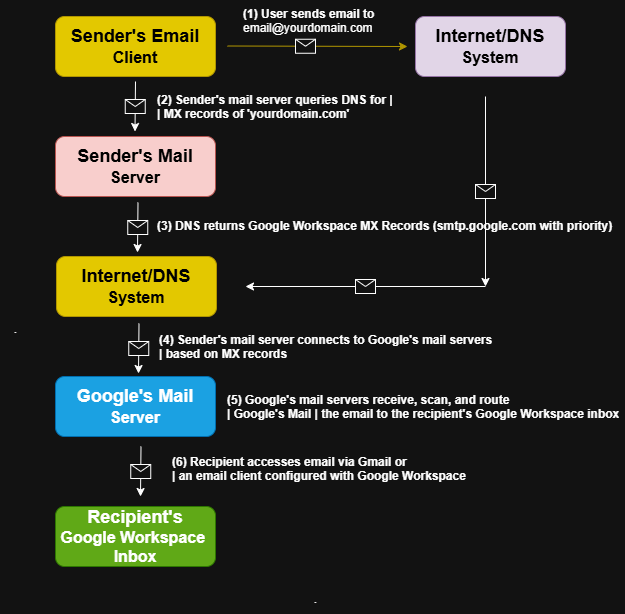
Step (1) :-
A user composes a message in their email app (the “Sender’s Email Client”) and hits Send to an address like email@yourdomain.com. The app hands the message to the organization’s outgoing mail server over SMTP (often with TLS encryption). From this moment, delivery becomes the mail server’s job—it must figure out where on the internet the domain yourdomain.com receives mail.
Step (2) :-
The Sender’s Mail Server asks the Internet/DNS system for the MX (Mail Exchange) records of yourdomain.com. MX records tell senders which hostnames accept mail for a domain. Note that an MX record never points directly to an IP address; it points to a hostname (e.g., aspmx.l.google.com). The system will later resolve those hostnames to IPs via A/AAAA records.
Step (3) :-
DNS replies with the domain’s MX set and their priorities (also called preferences). In a Google Workspace setup, DNS returns Google’s mail exchanger hostnames such as ASPMX.L.GOOGLE.COM, ALT1.ASPMX.L.GOOGLE.COM, etc., each with a number. The sending server should try the lowest-numbered (highest-priority) record first, and if that server is unreachable, try the next one. This redundancy ensures email still delivers even if one server is down.
Step (4) :-
Using the chosen MX hostname, the Sender’s Mail Server performs a normal DNS lookup to get its IP address, then opens an SMTP connection to Google’s mail servers. During the SMTP handshake, the servers typically negotiate TLS for encryption and exchange commands like HELO/EHLO, MAIL FROM, RCPT TO, and DATA. If checks pass and the remote server is available, Google receives the message.
Step (5) :-
Google’s Mail Servers receive the message and run a series of processing steps. These include spam/malware scanning, reputation checks, and authentication verification such as SPF, DKIM, and DMARC alignment. If the recipient exists and policy checks succeed, Google routes the message to the correct Google Workspace mailbox. If something fails (for example, the user doesn’t exist or policy blocks the mail), Google returns a bounce/error to the sender.
Step (6) :-
The Recipient’s Google Workspace Inbox now contains the delivered message. The recipient can read it in Gmail on the web, in the Gmail mobile app, or in any IMAP/POP/Exchange-compatible email client configured for their Workspace account. From the user’s perspective, it simply appears in Inbox (or a label/folder if filters moved it), but behind the scenes it arrived via the MX-guided path you see in the diagram.
6. Architectural Insights: Ensuring Reliability and Security
6.1 The Strategic Purpose of Multiple MX Records
When you set up multiple MX records with different priorities, you build a stronger and more reliable email system. This setup does more than just route mail—it improves both stability and performance and creates a robust and resilient email system.
6.1.a. Redundancy and Failover:
The main benefit is backup support. You can add several mail servers with different priority levels. The server with the lowest number works first. If it goes down because of maintenance or a technical issue, the next server in line takes over. This way, emails still reach their destination, and your communication never stops.
6.1.b. Load Balancing:
If you give two or more servers the same priority, the system spreads incoming emails across them. This balances the traffic, lowers the strain on a single server, and speeds up delivery. For businesses that handle a huge number of emails, this method improves efficiency and avoids delays.
How Load Balancing Works with Equal-Priority MX Records
If you set both Google Workspace MX (smtp.google.com) and Proofpoint MX (mx1-us1.ppe-hosted.com) with the same priority (1), then:
- The sending mail server looks at the MX record list.
- Since both have the same priority, the sending server decides randomly or in a round-robin fashion which server to try first.
- Some sending systems may also use factors like DNS response time or caching, but generally, it’s random selection between servers of the same priority.
Let’s Suppose I’m using google workspace mx and Proofpoint mx with both priority is 1 then in this scenario how load balancing works.
A user sends you an email. Their sending mail server checks your DNS and sees two MX records with the same priority:
smtp.google.com(Google Workspace)mx1-us1.ppe-hosted.com(Proofpoint)The sending server chooses one of them at random (or based on its own algorithm). If the chosen server is up and accepts the message, the process ends there. If the chosen server rejects the connection or is unreachable, the sending server then tries the other one.
Key Point: You cannot control which server will receive the email first if both MX records have the same priority. The choice depends on the sender’s mail system. Over time, the load balances out because different senders hit different servers.
6.1.c. The Impact of Time-to-Live (TTL) on Responsiveness
The TTL (Time-to-Live) value in an MX record is a critical factor that governs how quickly changes to the record are recognized globally. It dictates the amount of time that a DNS resolver is allowed to cache the record before it must query the authoritative server for an update.
A low TTL value, such as 300 seconds, ensures that changes propagate very quickly but places a higher query load on the DNS server. Conversely, a high TTL value, like 86400 seconds (24 hours), reduces the query load but can significantly delay the propagation of new records. During an MX record migration, it is a recommended best practice to set the TTL to a low value to speed up the transition and then increase it to a higher, more stable value once the changes are confirmed to be working correctly.
6.2 MX Records and Modern Email Security
While MX records are the foundation of email routing, they are not a security feature in themselves. They are, however, a critical component of a broader ecosystem of DNS records that are essential for modern email security and deliverability. The contemporary email landscape requires a “chain of trust” that extends beyond mere routing.
This trust is established through a trio of complementary DNS records: SPF, DKIM, and DMARC.
6.2.a. SPF (Sender Policy Framework):
- A TXT record identifies which mail servers can send email on behalf of a domain. A receiving server can check the SPF record to verify the sender’s legitimacy and prevent domain spoofing.
6.2. b. DKIM (DomainKeys Identified Mail):
- This security protocol uses digital signatures to verify the integrity and authenticity of an email message, ensuring it has not been tampered with in transit.
6.2.c. DMARC (Domain-based Message Authentication, Reporting, and Conformance):
- DMARC builds upon SPF and DKIM. It is a policy that tells receiving servers how to handle emails that fail SPF or DKIM authentication, with options to take no action, quarantine the message, or reject it entirely.
The relationship among these records is symbiotic. A correctly configured MX record may route an email to the proper destination, but if the domain’s SPF, DKIM, or DMARC records are missing or incorrect, the message may be flagged as spam or rejected outright by the receiving server. An effective and trustworthy email infrastructure therefore requires the implementation and coordination of all these records to ensure both proper routing and successful deliverability.
| Record Type | Purpose | Role in Email Flow |
|---|---|---|
| MX | Specifies the mail server for incoming email. | Directs the sending server to the correct host. |
| A/AAAA | Maps a hostname to an IP address. | Resolves the MX record’s hostname to a physical server. |
| SPF | Lists authorized servers for sending email from a domain. | Verifies the sender’s identity to prevent spoofing. |
| DKIM | Uses a digital signature to verify message integrity. | Authenticates the message content to prevent tampering. |
| DMARC | Sets a policy for how receiving servers should handle unauthenticated email. | Enforces authentication and provides a mechanism to receive failure reports. |
7. Advanced Troubleshooting and Proactive Maintenance
7.1 Common Configuration Issues and Their Resolutions
Proper MX record configuration is essential, but even with careful setup, issues can arise. A systematic approach to troubleshooting is required to diagnose and resolve these problems.
7.1.a. Conflicting or Missing Records:
The most common issue is the failure to remove old MX records from a previous email provider. This can cause email to be intermittently or completely misrouted to the old servers. The solution is to delete all pre-existing MX records from the DNS zone, leaving only the new records for Google Workspace. Conversely, a complete lack of an MX record will prevent a domain from receiving any email, as sending servers will not know where to deliver messages.
7.1.b. Incorrect Values or Syntax:
Typos, such as a misplaced period or a forgotten number, are a frequent cause of delivery failures. The correct Value for Google Workspace is SMTP.GOOGLE.COM, and any deviation from this, or from the legacy values, will cause routing to fail. The fix is to meticulously double-check all entered values against the official documentation.
7.1.c. Propagation Delays:
A correctly configured record may appear to be failing simply because it has not yet propagated across all DNS servers worldwide. The resolution is to wait for the changes to take effect, which can take up to 72 hours, and to avoid making any further changes during this period.
7.1.d. Emails Landing in Spam:
If an MX record is correct but emails are being flagged as spam, the problem often lies with the domain’s security records. The absence of properly configured SPF, DKIM, or DMARC records can cause receiving mail servers to distrust messages from the domain, even if they are routed correctly. The solution is to implement these complementary security records in the DNS.
7.1.e. Missing A or PTR Records:
A well-configured MX record is useless if its destination hostname does not resolve to a valid IP address. The SMTP.GOOGLE.COM hostname must have a valid A record. Additionally, some receiving servers may perform a reverse DNS lookup (PTR record) on the sender’s IP address to verify legitimacy. If the sending server’s IP lacks a corresponding PTR record, emails may be rejected
| Issue | Probable Cause | Recommended Fix |
|---|---|---|
| No MX records found | MX records are missing from DNS. | Add the correct MX records in the domain’s DNS settings. |
| Emails not delivered | Conflicting or incorrect MX records are present. | Remove all old records and verify the new records are correct. |
| Propagation delays | DNS cache has not expired or TTL is set too high. | Be patient, wait for propagation to complete, and use diagnostic tools to monitor. |
| Emails landing in spam | SPF, DKIM, or DMARC records are missing or misconfigured. | Implement or fix all complementary email authentication records. |
| Host not found errors | A record for the mail server hostname is missing. | Ensure the MX record’s destination hostname resolves to a valid IP address. |
7.2 Tools and Methods for Verification
Verifying MX record configuration is a proactive step that can prevent or quickly resolve delivery issues.
7.2.a Command-Line Tools: Native operating system tools like dig (for Linux and macOS) and nslookup (for Windows) can be used to perform direct queries against a domain’s DNS records. These commands provide real-time information about which records are currently published for the domain.
- Windows (Command Prompt):nslookup -type=MX yourdomain.com
- Mac/Linux (Terminal):dig MX yourdomain.com
7.2.b Online Checkers: Several web-based tools, such as the Google Admin Toolbox, DNS Checker, and Mx Toolbox, provide comprehensive diagnostic services. These tools can check for MX records from multiple geographic locations, verify propagation, perform reverse DNS lookups, and even check the mail server’s IP address against spam blacklists
Final Thoughts
Setting up MX records in Google Workspace is essential for receiving emails through Gmail on your custom domain. Once configured properly (and after DNS propagation), your business email will work smoothly.
👉 Don’t forget to add SPF, DKIM, and DMARC for better security and deliverability.
FAQs
Q1. What is an MX record in Google Workspace?
It’s a DNS record that routes your domain’s email to Google’s mail servers.
Q2. What is the MX record value for Google Workspace in 2025?
The primary MX record is smtp.google.com with priority 1.
Q3. What is an MX record in Google Workspace?
An MX (Mail Exchange) record is a DNS setting that directs your domain’s email to Google’s mail servers so you can use Gmail with your domain.
Q4. How long does MX record update take?
Usually within a few hours, but sometimes up to 72 hours.
Q5. Do I need SPF, DKIM, and DMARC?
Yes, they improve email deliverability and protect against spoofing.
Q6. Can I use custom MX records with Google Workspace?
No. You must use Google’s official MX records for Gmail to work correctly with your domain.
Q7. How do I check if my MX records are set correctly?
You can use tools like Google Admin Toolbox CheckMX or third-party DNS lookup tools to verify your MX record setup.
Q8. What happens if I enter MX records incorrectly?
If MX records are incorrect, your emails may not be delivered, bounce back, or get routed to the wrong mail server.
Q9. Do I need to delete old MX records in Google workspace?
Yes, to avoid conflicts, delete any old or unused MX records after adding Google Workspace MX records.
Q10. Can I set backup MX records in Google Workspace?
If you are using old mx of google then its already provides multiple backup MX servers (ALT1, ALT2, ALT3, ALT4). You don’t need to add additional backup servers manually.